2 minutes
Configure Pulumi Remote State With Azure Storage Account
Prerequisites:
- Install Azure CLI
- Install Pulumi SDK
Deploy Azure Storage Account:
- Through the Azure Portal:
- Create a resource -> Storage Account -> Create
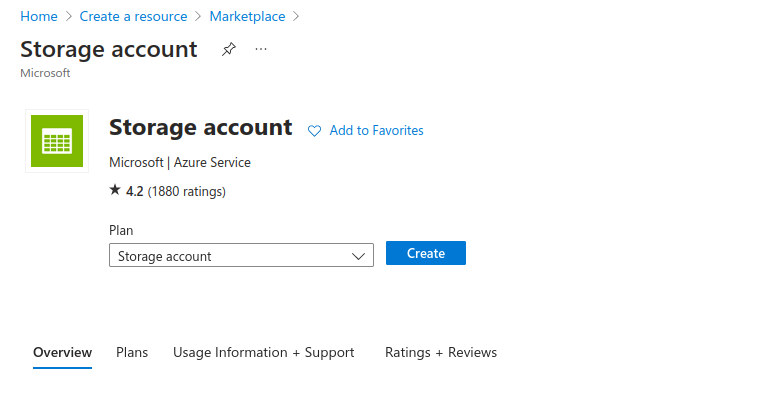
- Create a resource -> Storage Account -> Create
- Configure your Storage Account:
- Standard performance and GSR redundancy should work fine.
- NOTE: if you change network settings to only allow specific IP Addresses and VNets, you will need to add your WAN IP address to the network rules in order to read/write from your backend.
- Alternatively, you can deploy the storage account via Azure CLI.
- Run
az loginand authenticate with the prompts. - If you have multiple subscriptions under your tenant(s). You can select the desired subscription by running
az account set --subscription "My-Subscription-Name" az storage account create --name "pulumistate" --resource-group "RG-Example" --location "eastus"
- Run
Create A Container In The Storage Account:
- Through the Azure Portal:
- Go to your storage account -> data storage -> containers -> new container

- Go to your storage account -> data storage -> containers -> new container
- Alternatively, you can create the container via Azure CLI.
az storage container create --name "YourContainerName" --account-name "StorageAccountName" --auth-mode login
Configure Perms:
- You will need grant yourself and any others the ‘Azure Blob Data Contributor’ role in order to manage the backend.
- NOTE: Owner will not grant you the necessary perms. Even if you’re the owner, you will need the Azure Blob Data Contributor role assignment as well.
- Through the Azure Portal:
- Go to your storage account -> Access Control (IAM) -> Add Role Assignment -> Azure Blob Data Contributor -> Add users/groups -> Review + Assign

- Go to your storage account -> Access Control (IAM) -> Add Role Assignment -> Azure Blob Data Contributor -> Add users/groups -> Review + Assign
Initialize Your Azure Storage Account Backend
- Navigate to the directory where your new pulumi project will live.
- The Official Pulumi Docs on this topic are a bit confusing.
- The docs say this command should work with authing to the Azure Storage Account backend.
pulumi login azblob://<container-path>?storage_account=account_name
- However, what’s unclear is the container-path part. Is this the container primary endpoint? The path within the storage account to the container?
- It even says to pass
azblob://<container-path>as our<backend-url>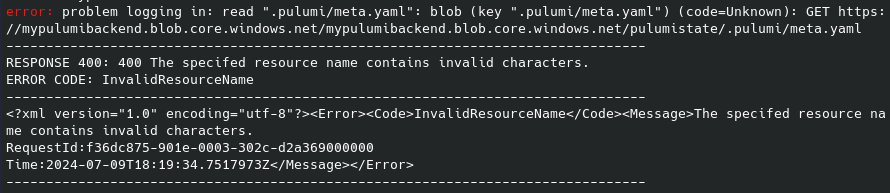
- What I’ve found to work is:
pulumi login azblob://container-name?storage_account=storage-account-name
Initialize Your New Pulumi Project
- Initialize the new pulumi project with:
pulumi new
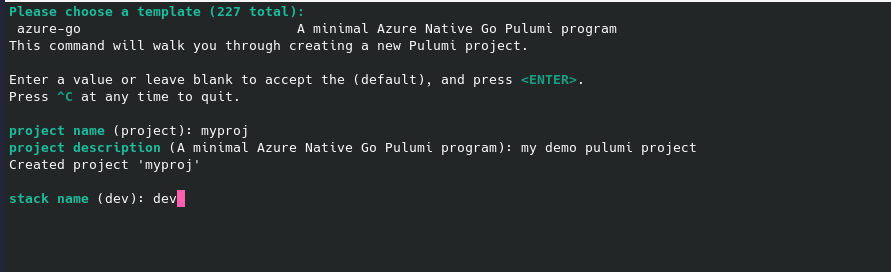
- Follow the prompts to initialize the project.
- For example, I chose a new Azure GoLang project.
Happy deploying! ☁️
361 Words
2024-07-08 02:07